

Step 8 How to manage your users and their permissions
There is no user-number limit in our system. You can add many users as you want. Now, please follow these simple steps to manage your users and their permissions:
Step 1) Go to Staff Management Section
Go to Staff Management section, as Figure 53 shows:
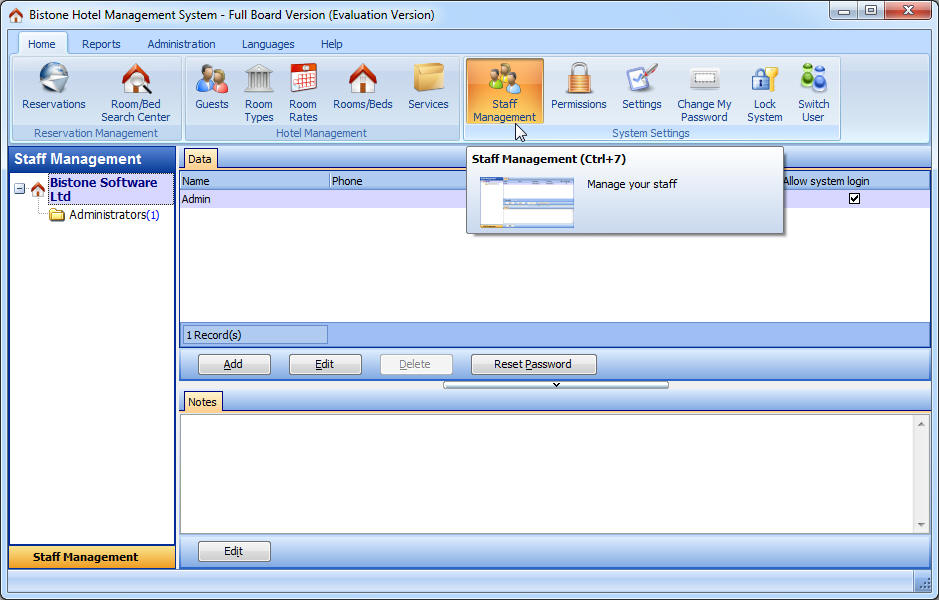
Figure 53 Go to Staff Management System
Step 2) Click Add Button
Click Add button in the staffs panel, as Figure 54 shows:
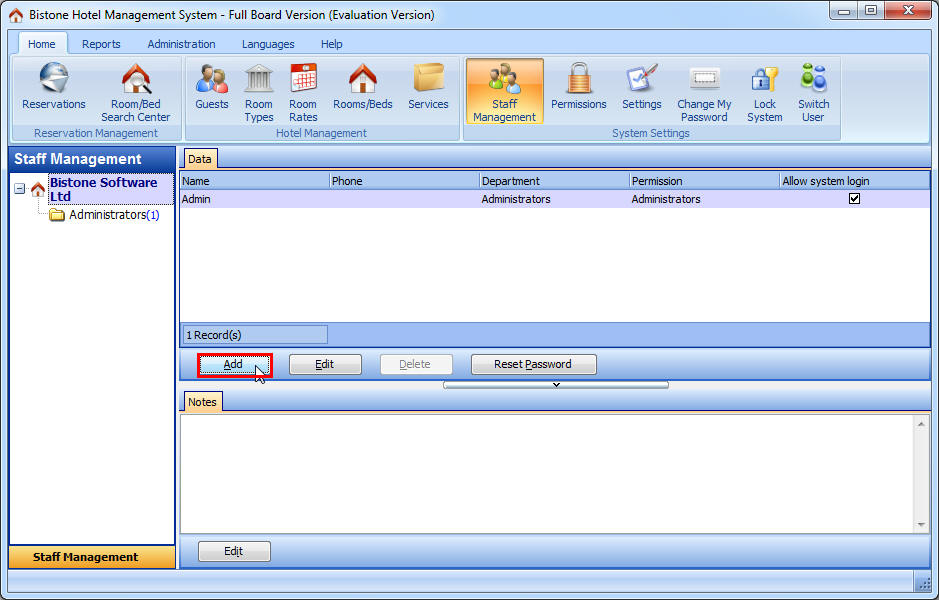
Figure 54 Click Add Button
Step 3) Enter All Fields
Enter all fields in the Add Staff dialog, as Figure 55 shows:
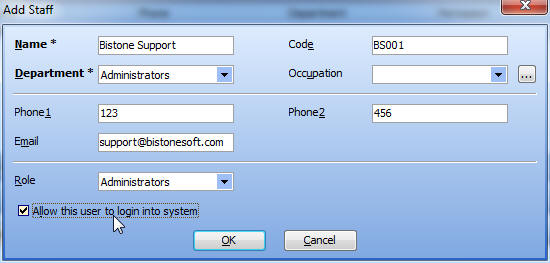
Figure 55 Enter All Fields
Then, click ok button, the user called 'Bistone Support' has been added into the system, as Figure 56 shows:
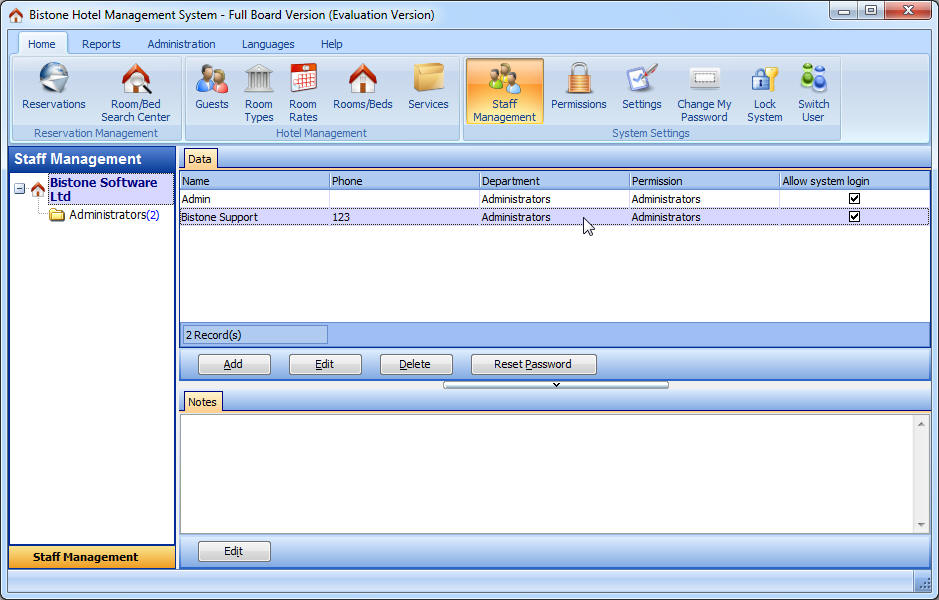
Figure 56 User List
Step 4) Go to Permissions Section
Go to Permissions section, as Figure 57 shows:
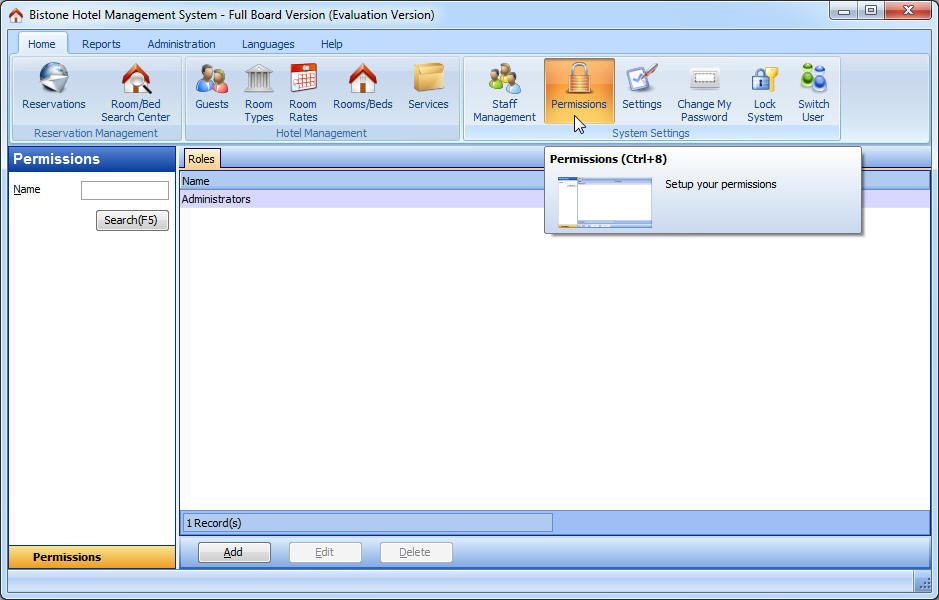
Figure 57 Go To Permissions Section
Step 5) Click Add Button
Click Add button in the permissions panel, as Figure 58 shows:
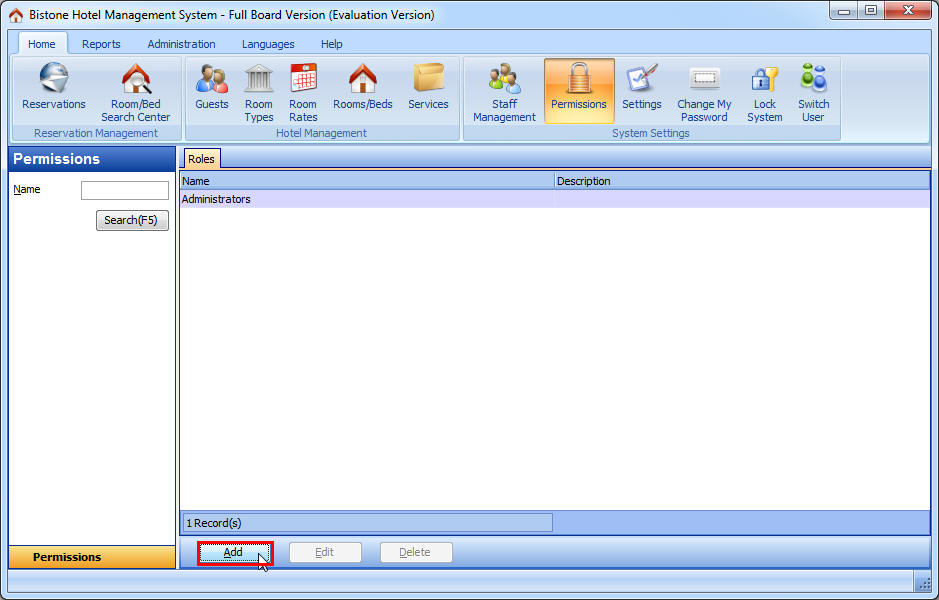
Figure 58 Click Add Button
Step 6) Enter All Fields
Enter or select all fields in the Add Role dialog, as Figure 59 shows:
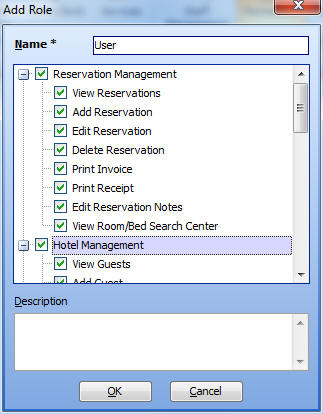
Figure 59 Enter All Fields
Step 7) Modify a User's Roll
Go to Staff Management section, select the user called 'Bistone Support', and then, click Edit button, and modify its role, as Figure 60 shows:
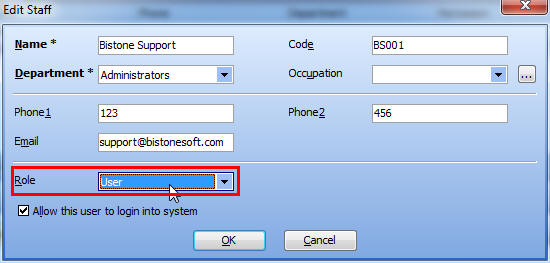
Figure 60 Modify Role
OK, when you login system as Bistone Support, you can access several sections, as Figure 61 shows:
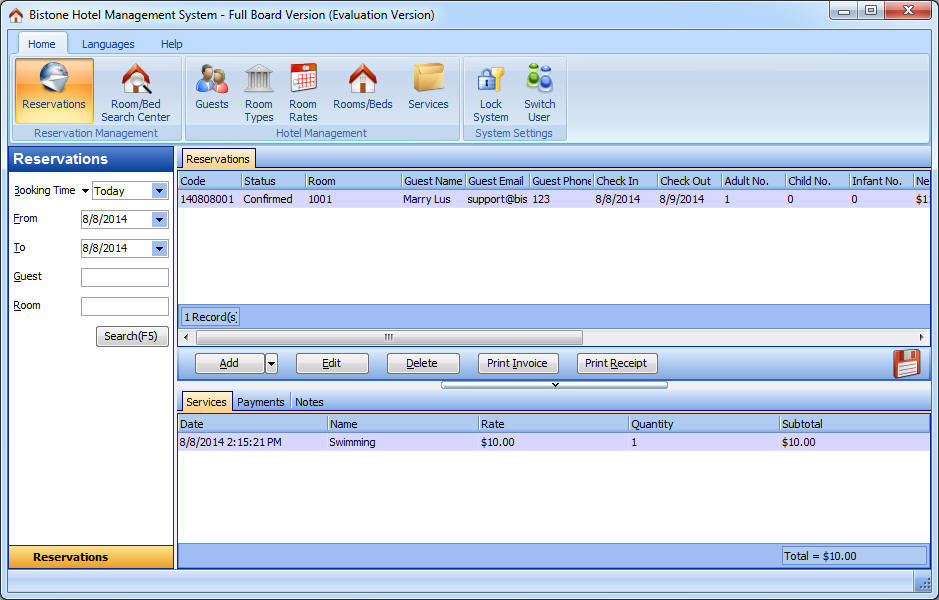
Figure 61 User Role UI